




The step-by-step guide

How to make your Stickah

Ten quick steps from your art to a wicked good sticker. Tap through, see exactly what to click, and then try it for real.

  • 10 steps
  • ~2 minutes
  • No account needed
  • Printed in Massachusetts
Start Building
Step 1 of 10
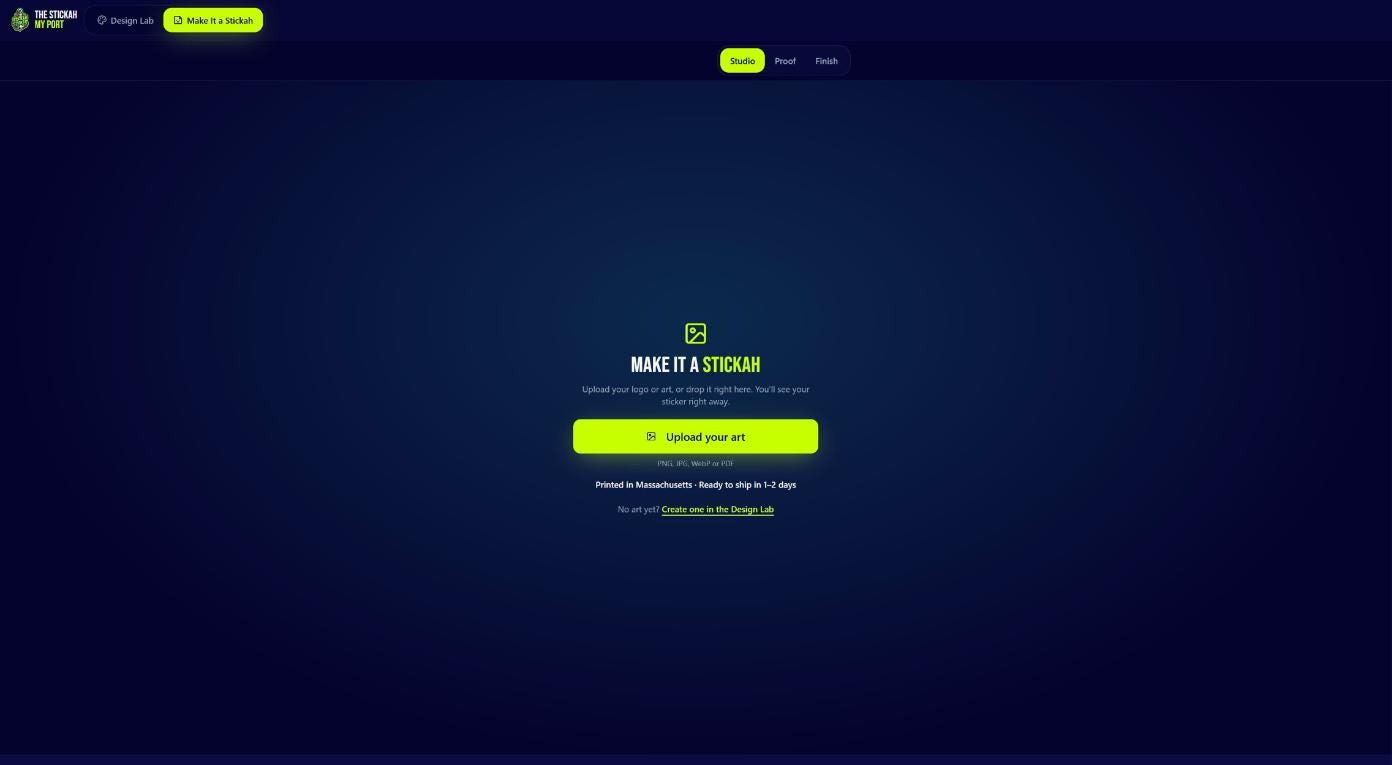
The upload screen of the Stickah builder

1

Tap the numbers to learn what each part does

Step 1 of 10

Drop in your art

Hit Upload your art and pick your logo, drawing or photo. PNG, JPG, WebP or PDF all work, and your sticker shows up right away. No waiting around.

Pro tipBigger files print sharper. Aim for at least 1000 pixels on the long side. A PNG with a see-through background gives you the cleanest cut.

Try it now
Choosing to keep or remove the background

1

Tap the numbers to learn what each part does

Step 2 of 10

Keep it or lose the background

Your sticker pops up with a live preview. Choose Keep My Background to print your picture exactly as is, or Remove My Background to cut out just your design.

Pro tipSee "Already transparent"? You are good to go, just hit Next. Logos on a plain solid color come out cleanest when you remove the background.

Try it now
Choosing the cut style and shape

1

Tap the numbers to learn what each part does

Step 3 of 10

Pick your cut

Die-cut means the sticker and its backing follow the outline of your design. Kiss-cut peels off a larger backing sheet. Then choose the shape that follows your art.

Pro tipFor most designs, pick Contour. It follows the outline of your artwork, so you get a sticker shaped like your design, not a plain box.

Try it now
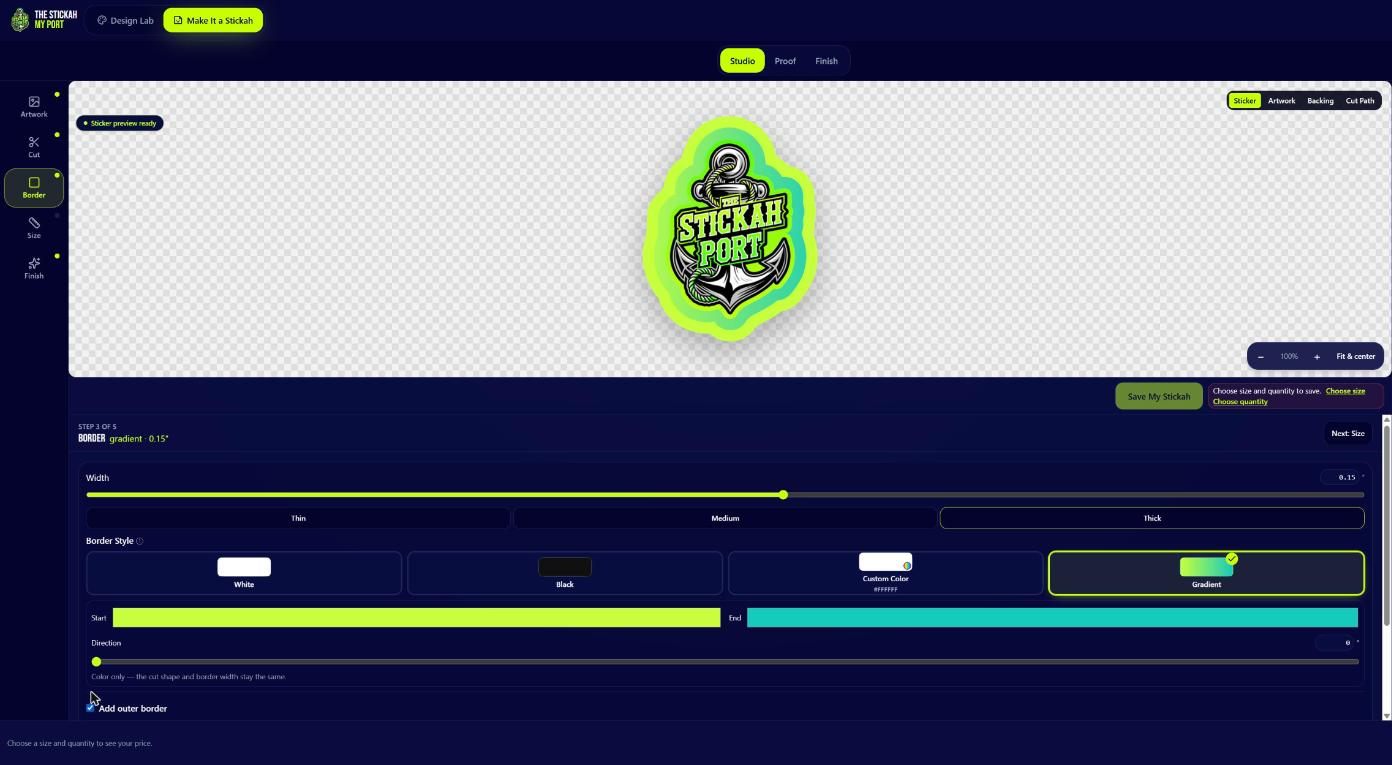
Choosing the border width and color

1

Tap the numbers to learn what each part does

Step 4 of 10

Border size and color

The border is the colored edge around your art. Slide the width bigger or smaller, or tap Thin, Medium or Thick. Then pick White, Black, a Custom color or a Gradient.

Pro tipWhite is the classic sticker look. Black makes bright art pop. A gradient is a fun way to match your brand colors.

Try it now
Turning on a second outer border

1

Tap the numbers to learn what each part does

Step 5 of 10

Want a double border?

Tick Add outer border to wrap a second ring of color around the first. Pick its color and width just like the first one.

Pro tipPick two colors that contrast, like white on the inside and lime on the outside, for a bold look people notice from across the room.

Try it now
Choosing size and quantity with prices

1

Tap the numbers to learn what each part does

Step 6 of 10

Size and how many

Choose how big your Stickah should be, from 2 to 6 inches, or hit Custom for any size. Then pick your quantity. The price is right there on every button.

Pro tipPrice per sticker drops as the quantity goes up, so peek at 200 and 300 before you decide. Prices here are examples for a 3 inch sticker. Yours depends on your size and finish.

Try it now
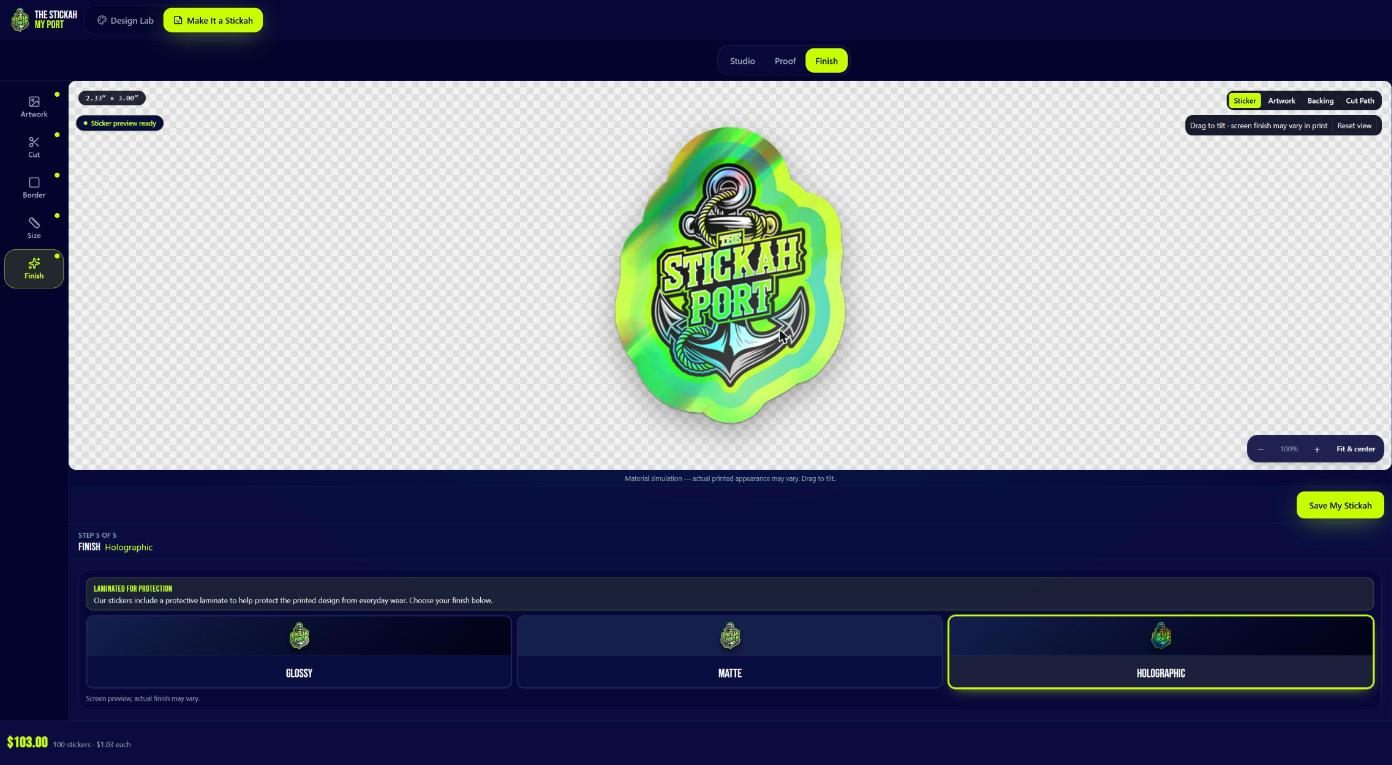
Choosing glossy, matte or holographic finish

1

Tap the numbers to learn what each part does

Step 7 of 10

Pick your finish

Every Stickah is laminated to stand up to everyday life. Pick Glossy for shine, Matte for a smooth soft look, or Holographic for rainbow sparkle.

Pro tipDrag your sticker around on the screen to tilt it and see how the finish catches the light. The screen is a preview, so colors can look a little different in print.

Try it now
The holographic finish with rainbow shimmer

1

Tap the numbers to learn what each part does

Step 8 of 10

Go holographic

Holographic gives your sticker a rainbow shimmer that changes as it moves. Tap it and your price updates on the spot, so you always know what you are paying.

Pro tipHolographic is the head turner. Drag the sticker around and watch the rainbow shift across your design.

Try it now
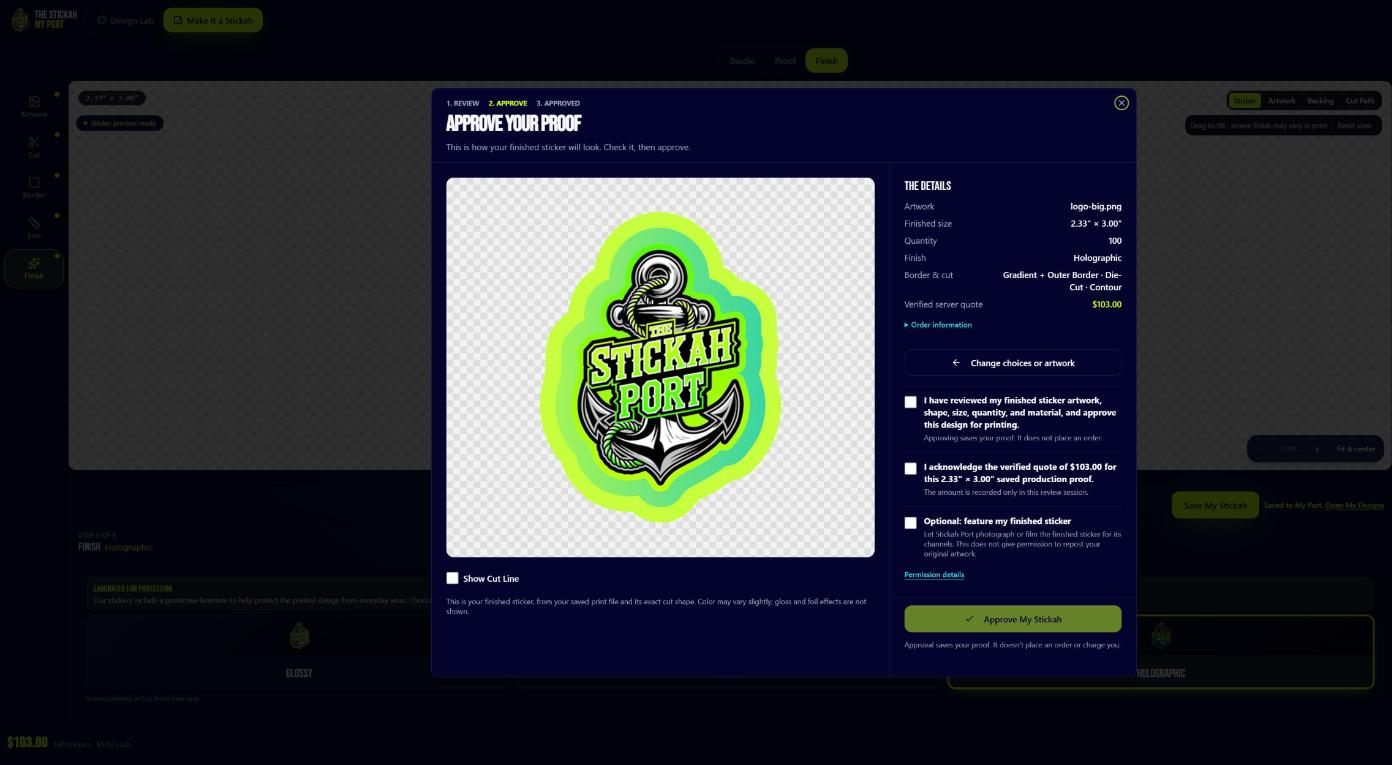
The final proof screen to review your sticker

1

Tap the numbers to learn what each part does

Step 9 of 10

Check your proof

Hit Review and we build your final print proof. This is how your finished Stickah will look, made from your saved print file and its exact cut shape.

Pro tipTick Show Cut Line to see exactly where the blade will go. If anything looks off, "Change choices or artwork" takes you back.

Try it now
Approving your proof

1

Tap the numbers to learn what each part does

Step 10 of 10

Approve and add to cart

Not signed in yet? Choose Continue as guest, or sign in so My Port saves your designs. Tick the two boxes to confirm, then approve. On our site that button reads Approve & Add to Cart, and then you head to checkout like normal.

Pro tipGuest checkout is totally fine. Sign in only if you want to keep your designs for next time.

Try it now

Swipe left or right to change steps

Ready? Let's make it wicked good

Upload your art and see your sticker in seconds. Printed in Massachusetts and ready to ship in 1 to 2 days.

  • Live preview
  • See your proof first
  • Guest checkout
Make my Stickah